- A+
Introduction
Having two printers of the same model can be a convenient and cost-effective solution for offices and homes. However, installing the drivers for both printers can be a challenge. In this article, we will guide you through the steps of installing the drivers for two printers of the same model.
Step 1: Gather Information
The first step is to gather the necessary information about your printers. You will need to know the model number and the type of printer (inkjet or laser). This information can usually be found on the label attached to the printer or in the owner’s manual.
Step 2: Download the Driver
Once you have identified the make and model of your printers, you can download the driver from the manufacturer’s website. Make sure to choose the correct driver for your operating system (Windows, Mac, Linux) and the printer model.
Step 3: Install the Driver
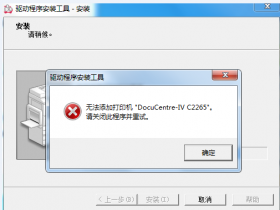
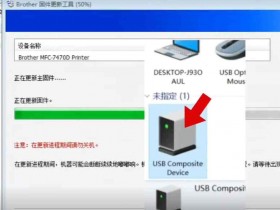
Before installing the drivers, it is recommended to disconnect one of the printers from your computer to avoid any confusion during the installation process. Once the driver is downloaded, double-click on the file to start the installation process. Follow the instructions carefully, and when prompted, connect the printer to the computer. The computer will automatically recognize the printer and install the necessary drivers. Repeat this process for the second printer, making sure to disconnect the first printer before beginning the installation.
Step 4: Configure the Printers
After both printers are successfully installed, you may need to configure the printers to differentiate them from each other. This is important so that you can select the correct printer when printing documents. One way to differentiate the printers is to assign unique names to each printer in the printer settings. You can also assign different IP addresses to each printer, which will allow you to easily identify them on your network.
Conclusion
Installing drivers for two printers of the same model may seem daunting, but with the right information and careful steps, it can be done easily. By following the above steps, you can successfully install the drivers for both printers, avoiding the confusion and frustration often associated with managing multiple printers on one computer.