- A+
Introduction
Printing has become an essential part of our daily lives, whether it be for work or personal use. Installing a printer driver is necessary to use the printer's functionality fully. In this article, we will guide you through the process of installing the MFC7360 printer driver.
Step 1: Collect Information
Before installing the driver, you should gather information about your printer and operating system. You can find your printer's model number on the front of the printer or in the user manual. For the operating system, go to the Start Menu on your desktop and choose Settings. In the Settings menu, select System and then About. Here, you can see the version and system type of your operating system.
Step 2: Download and Extract the Driver Files
Visit the official Brother website and locate the MFC7360 printer driver. Download the driver software compatible with your operating system, and save it to an easily accessible location on your computer. Once the download is complete, extract the driver files to a new folder on your desktop.
Step 3: Connect the Printer
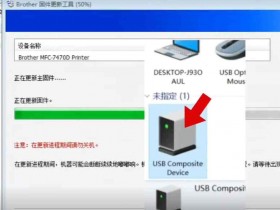
Connect the MFC7360 printer to your computer using the USB cable provided. After connecting the printer, turn it on and wait for your computer to detect the printer. Follow the on-screen prompts if prompted to install the printer driver automatically. Skip this step if your computer has already installed the printer.
Step 4: Install the Driver
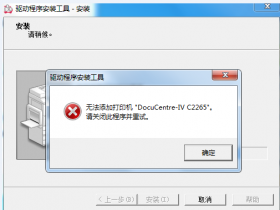
Navigate to the extracted driver folder and locate the installer file. Double-click the file to launch the installation wizard. Follow the on-screen prompts to complete the installation process, selecting the appropriate options as needed. After the installation is complete, restart your computer to apply the changes.
Step 5: Test the Printer
After completing the installation, test the printer by printing a test page. Go to the Control Panel, choose Devices and Printers, and locate the MFC7360 printer. Right-click the printer and select Printer Properties. Select the General tab, and click the Print Test Page button. If the printer prints the test page correctly, it is ready for use.
Conclusion
By following these steps, you can install the MFC7360 printer driver and start using the printer for all your printing needs. Remember to keep the driver software up to date to ensure optimal performance, and if you face any issues during the installation process, refer to the user manual or contact customer support for assistance.