- A+
Introduction
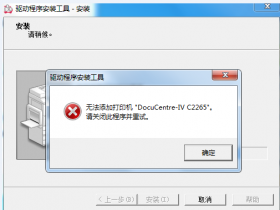
Printing is an essential part of our daily lives, and when our printer driver fails to install, it can cause major disruptions. Printer drivers are software programs that communicate with your computer and printers, allowing them to function together. When your printer driver fails to install, it can be frustrating and may prevent you from printing your work. In this article, we will discuss the causes of printer driver installation failure and how to resolve them.
Possible Causes of Printer Driver Installation Failure
Printer driver installation failure can occur due to several reasons. Some common causes include:
Compatibility issues with the operating system
Corrupt printer driver files
Incomplete printer driver installation process
Driver conflict with other software
Outdated printer driver version
Solutions to Fix Printer Driver Installation Failure
Here are some of the solutions to fix printer driver installation failure:
1. Ensure Compatibility with Operating System
The first step is to check if your printer driver is compatible with your operating system. If it’s not compatible, the installation process is bound to fail. You can check your printer driver's compatibility by visiting the manufacturer’s website or checking the printer's manual.
2. Remove Previous Installation Files
Before installing a new printer driver, it’s important to remove any previously installed printer drivers. You can do this by opening the Control Panel and selecting “Programs and Features” or “Add/Remove Programs,” then uninstalling any previous printer driver software.
3. Download and Install Latest Printer Driver
One of the most common reasons why printer driver installation fails is due to outdated printer driver versions. To fix this, download and install the latest printer driver from the manufacturer's website. Ensure that you select the correct driver for your printer model and operating system.
4. Disable Antivirus or Firewall Software
Antivirus or Firewall software can often interfere with printer driver installation processes. If you have antivirus or firewall software installed, temporarily disable it before installing the printer driver.
5. Update BIOS Settings
Updating BIOS settings can also fix printer driver installation failures. Access your computer's BIOS settings by pressing F2 or F12 during boot-up, then navigate to the “Advanced” tab and select “System Configuration.” Select “Parallel Port” and change the setting to “Enabled” or “Auto.”
6. Use Windows Troubleshooter
If none of the above solutions fix the issue, use the Windows Troubleshooter. To do this, go to “Control Panel,” select “Troubleshooting” and select “Hardware and Sound." Then, select “Printer” and follow the prompts to resolve any issues.
Conclusion
Printer driver installation failure can be frustrating, but there are several solutions to fix the issue. Ensure compatibility with your operating system, remove previously installed drivers, download and install the latest driver, disable antivirus or firewall software, update BIOS settings, and use the Windows Troubleshooter if needed. Implementing these solutions can help you resolve any printer driver installation failure issues and enable you to start printing again.