- A+
Introduction
Printers are essential for businesses, organizations, and individuals who need to produce hard copies of documents. The printer drivers act as the bridge between the printer and your computer, allowing the printer to understand and print the documents. In this article, we will provide a step-by-step guide on how to install printer drivers for your printer, including connecting your printer and downloading the driver software.
Step 1: Connect your printer to your computer
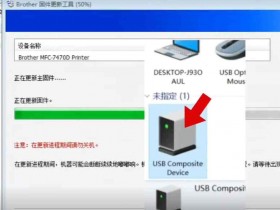
The first step in the printer driver installation process is to connect your printer to your computer using a USB cable. Make sure your printer is turned on and properly connected to your computer. Once you have established a connection, your computer should detect the printer automatically and display a pop-up window with instructions on how to install the printer driver.
Step 2: Download the printer driver software
Visit the printer manufacturer's website and search for the driver software that corresponds with your printer model and operating system. Make sure to download the latest version of the driver software to ensure the best compatibility and performance with your printer. If you are unsure about which driver software to download, you can use automatic driver detection software such as Driver Booster or Driver Easy to scan your computer, identify your printer and automatically download the correct printer driver.
Step 3: Run the printer driver installation software
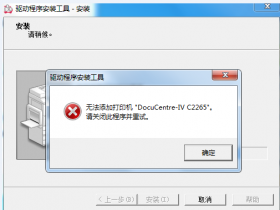
Once you have downloaded the printer driver software, double-click on the downloaded file to start the installation process. Follow the on-screen prompts to begin the installation process. Some installation software may ask you to choose the type of installation, so make sure to select the recommended installation option for your operating system.
Step 4: Configure your printer settings
After the installation process has completed, configure your printer settings to ensure that your printer is set up correctly. From your computer, navigate to the "Printers and Devices" settings located in the Control Panel or Settings menu and select your printer. Once you have selected your printer, click on the "Properties" or "Preferences" option to access the settings. Check the printer settings and make sure it is correctly configured for your printing needs.
Step 5: Test your printer
Once you have downloaded and installed the printer driver software and configured your printer settings, it is time to test your printer. From your computer, select the document or file you want to print and click on the print button. If your printer successfully prints the document, congrats! Your printer driver installation is now complete.
Conclusion
Installing printer drivers can seem daunting at first, but with this helpful guide, you can easily connect your printer to your computer, download and install the correct driver software, and configure your printer settings. Make sure to follow these steps carefully to ensure your printer is set up correctly, and enjoy your new printer's capabilities.