- A+
Installation Steps for T50 Printer Driver in English
The T50 printer is a highly capable device when it comes to printing photos and graphics. To make sure it performs optimally, it's essential to install the right drivers. The installation process for T50 printer drivers is relatively simple. In this tutorial, we'll provide you with a step-by-step guide to installing T50 printer drivers on your computer running on Windows Operating System.
Step 1: Download the Printer Drivers
The first step towards installing T50 printer drivers is downloading them. The driver software is available online from the Epson website or from third-party vendors. To ensure the right version and the latest software, it's best to download the drivers from Epson's official website. Visit the website and search for the latest T50 printer drivers compatible with your current Windows Operating System version and click the download button.
Step 2: Extract the Downloaded Files
Once the download is complete, navigate to the download folder on your computer and find the downloaded driver file. Right-click on the file and select the "Extract" option. A window will appear, and you need to select the location where you want to extract the files and click "OK."
Step 3: Install the Printer Drivers
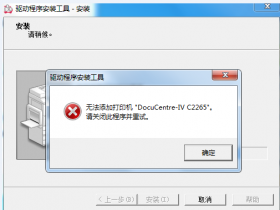
After extracting the files, double-click on the extracted folder to open it. Locate the setup.exe file and double-click on it. The setup wizard will start, and you need to follow the instructions carefully to ensure the driver software installation process completes successfully.
The setup wizard prompts you to select the language of your choice. Select English and click "OK." You'll then see the installation agreement window, and you need to read the agreement and click "I Agree." Then, a window appears where you need to select the printer model (T50) and printer port (USB) to install the driver and click "Next."
A warning message may appear, stating that the driver is not compatible with your operating system. Ignore the warning and click "Yes" to continue the installation process. The driver installation process starts, and a progress bar appears to indicate the installation status.
Step 4: Complete the Printer Configuration
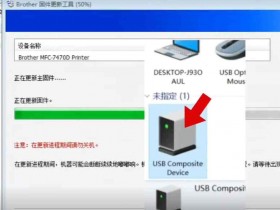
After installing the T50 printer driver, connect the printer to your computer using a USB cable. Turn on the printer and wait for Windows to automatically detect the printer. If Windows doesn't detect the printer, navigate to the "Devices and Printers" option in the control panel and add the T50 printer manually.
Now, you need to configure the printer settings to ensure optimal performance. Navigate to the printer settings and set the print quality, paper size, color, and other features according to your printing needs. After configuring, click "Apply" to save the changes made.
Final Words
Installing the T50 printer driver on a Windows-based system is a straightforward process. The process involves downloading the printer drivers, extracting the files, installing the drivers, connecting the printer, and configuring the printer settings. Just make sure you follow the instructions carefully to ensure the driver software installation process completes successfully. With T50 printer drivers installed, you can enjoy exceptional printing quality and reliability.