- A+
Introduction
Adding a wireless printer driver to your Windows 8 system can be a daunting task, especially if you've never done it before. However, this tutorial will guide you through the process step by step, making it a hassle-free experience.
Step 1: Connect to your wireless printer
The first step is to connect your Windows 8 system to your wireless printer. Make sure your printer is turned on and properly set up for wireless connectivity. Then, on your Windows 8 system, go to the 'Devices and Printers' folder by searching 'devices and printers' in the Start menu search bar or by opening the Control Panel and clicking on 'Devices and Printers'.
Once there, click on the 'Add Printer' option, and Windows will begin searching for available printers. If your printer is the only one available, it should show up automatically. If not, select 'The printer I want isn't listed'. From here, select 'Add a printer using a TCP/IP address or hostname' and follow the prompts to connect to your wireless printer.
Step 2: Download and install the printer driver
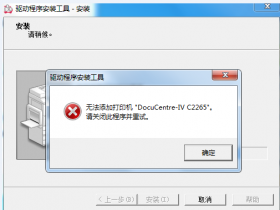
Now that your Windows 8 system is connected to your wireless printer, it's time to download and install the printer driver. Go to your printer manufacturer's website and find the support or downloads section. From here, select your printer model and download the appropriate driver for your Windows 8 system.
Once the driver has downloaded, double-click on the file to begin the installation process. Follow the prompts to install the driver, making sure to select the wireless option when asked about the printer connection type.
Step 3: Configure printer settings
After the driver is installed, go back to the 'Devices and Printers' folder and select your newly added printer. Right-click on the printer and select 'Printer Properties'. From here, you can configure various settings for your printer, such as print quality, paper size, and default print settings.
You can also check the 'Sharing' tab in Printer Properties to share your printer with other devices on your network.
Conclusion
Adding a wireless printer driver to your Windows 8 system can seem like a daunting task, but by following these simple steps, it can be done with ease. By properly connecting your printer, downloading and installing the appropriate driver, and configuring your printer settings, you'll be up and running in no time. Happy printing!