- A+
Introduction
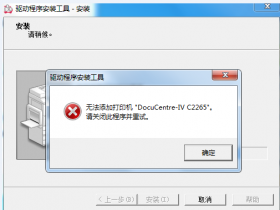
Connecting printers to WinXP networks can be challenging. In many cases, users encounter connection issues that prevent them from being able to install the necessary printer drivers for proper functionality. In this article, we will explore some common network connection issues and provide useful tips on how to troubleshoot and resolve them.
Check Network Connectivity
One of the most common causes of network connection issues for WinXP printer drivers is network connectivity. Begin by checking if the printer is turned on and the Wi-Fi connection is working correctly. If the printer is connected to a router, check if it is connected to the correct network. Use ping to test the network connection between the printer and the computer. If there is no ping response, check the router's network settings and ensure that the printer is properly connected.
Update Drivers
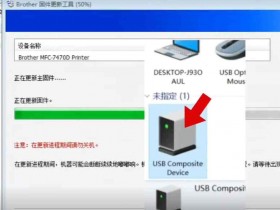
Outdated printer drivers can also cause issues when connecting to a WinXP network. It is crucial to update drivers to ensure compatibility with your computer and network settings. Visit the printer manufacturer's website and download the latest driver version for your printer model. Install the new drivers using the manufacturer's instructions.
Firewall and Antivirus Programs
Firewalls and antivirus programs can block network connections and cause issues when installing WinXP printer drivers. Check your firewall and antivirus settings and ensure that they are not blocking the connection. You may need to disable certain features temporarily to install the printer drivers. Once the drivers are installed successfully, you can re-enable these features.
Restart Services
In some cases, restarting the network services can help resolve network connection issues. To do this, open the Services app in Windows, locate the Print Spooler service, and restart it. Alternatively, you could restart the entire computer to ensure that all network services are refreshed and fully functional.
Conclusion
WinXP network connection issues for printer drivers can be frustrating to troubleshoot. However, with some basic troubleshooting tips, you can quickly identify and resolve the problem. Ensuring proper network connectivity, updating drivers, checking firewall and antivirus settings, and restarting services can all help get your printer up and running smoothly on a WinXP network.