- A+
Introduction
Printing is an essential function in our daily lives, and having a printer driver installed is necessary to facilitate uninterrupted printing. In this article, we will discuss how to install printer drivers for both Mac and Win10 operating systems to share a printer between the two.
Step 1: Printer Compatibility Check
Before proceeding with the driver installation process, ensure that the printer is compatible with both Mac and Win10. Check the manufacturer's website for compatibility and system requirements. In case the printer is not compatible with one of the operating systems, you may need to purchase a different printer or use an alternative printing solution.
Step 2: Download Printer Driver
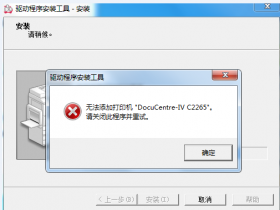
Visit the manufacturer's website and download the printer driver that is compatible with both Mac and Win10 operating systems. Make sure to download the correct driver version for your printer model and operating system. If you have a CD/DVD that came with the printer, you can also install the printer drivers from it.
Step 3: Install Printer Driver on Mac
To install the printer driver on Mac, follow the steps below:
Double-click the downloaded printer driver file to start the installation process.
Follow the instructions and prompts to complete the installation process.
Once the installation is complete, connect the printer to the Mac and turn it on.
Open the System Preferences on your Mac and click on the Printers & Scanners option.
Click the "+" button to add the printer, and select the printer that you want to install.
Finally, click on the Add button to complete the installation process.
Step 4: Install Printer Driver on Win10
To install the printer driver on Win10, follow these steps:
Double-click the downloaded printer driver file to start the installation process.
Follow the instructions and prompts to complete the installation process.
Once the installation is complete, connect the printer to the computer and turn it on.
Click the Start button and go to Settings > Devices > Printers & Scanners.
Click the Add a printer or scanner option, and Windows will search for the printer.
After the printer is detected, select it from the list and click the Add device button.
Finally, try to print a test page to ensure that the printer driver is installed correctly.
Conclusion
By following the above steps, you can easily install printer drivers for both Mac and Win10 operating systems to share a printer between the two. It is important to keep the printer driver updated to ensure optimal printer performance. With the printer driver installed, you can enjoy uninterrupted printing on both Mac and Win10 operating systems.